
How to Transcribe for Free: 4 Methods That Work
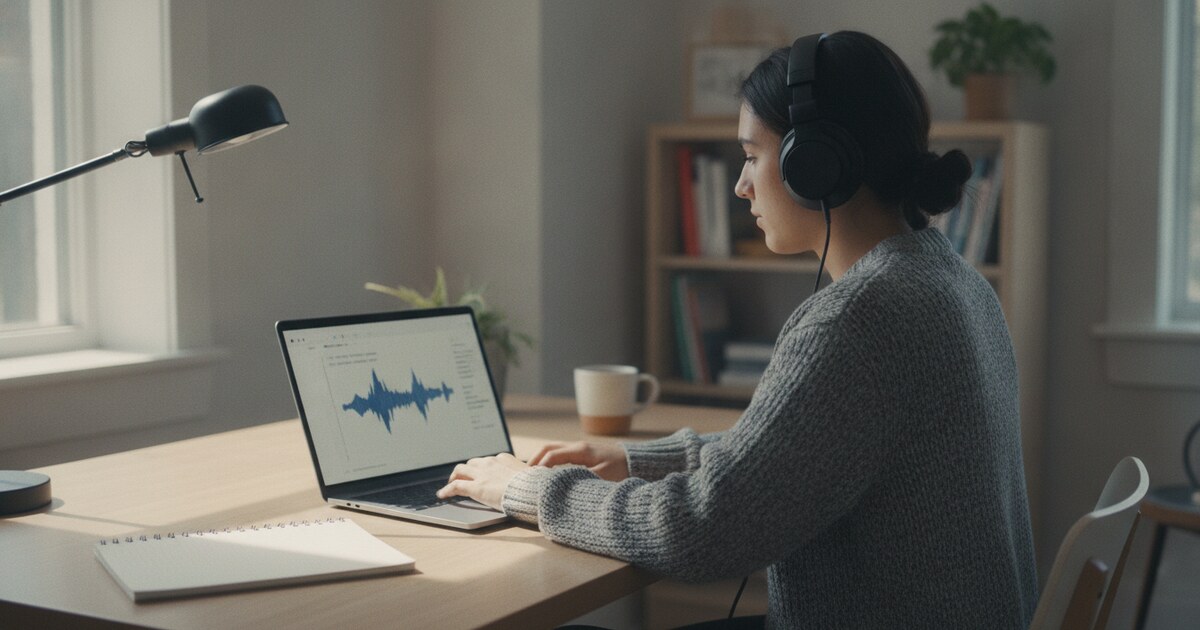
How to Transcribe for Free: 4 Methods That Work
Recording a lecture, interview, or meeting is easy. Turning that audio into usable text used to mean hours of manual typing, at roughly 4-5 hours per 60-minute recording. Now you can transcribe for free with AI tools that handle the same job in under 2 minutes. The catch is knowing which tool suits your situation. Some cap free usage at 3 files per day. Others need no account at all. And a few platforms you already use, like YouTube and Google, have built-in options most people miss. Here are 4 methods that work.
To transcribe for free, upload your audio or video file to an AI tool such as NoteHive or Riverside. Both process a 60-minute recording in under 2 minutes and support 80+ languages. For YouTube videos, use the platform's built-in captions instead. For live audio, Google Docs Voice Typing works at no cost and needs no account.
Method 1: How to Transcribe for Free with an AI Upload Tool
This is the fastest path for most situations. Upload your audio or video file, an AI model converts speech to text, and you get a downloadable transcript in 1-2 minutes.
Free AI transcription tools typically reach 85-95% accuracy on clear audio recordings, dropping to 70-80% in noisy environments or with heavy accents. Processing speed runs from 30 seconds to 2 minutes for a 60-minute file, depending on the service and current server load.
Most free tiers cap usage in one of three ways: time per month (120 minutes on UniScribe), files per day (3 on TurboScribe, each up to 30 minutes), or a note quota that fires after a set number of sessions. Riverside is the exception: it transcribes unlimited audio and video files for free with no account required, returning the output as TXT or SRT.
NoteHive's free tier goes further. Upload an audio or video file and the app builds AI-organized notes, auto-generated flashcards, and a practice quiz from the transcript. The paywall fires at the note-count limit rather than the upload itself, so you can test the full workflow on your first session at no cost, across 80+ languages including Spanish, French, Mandarin, and Arabic.
Here's the step-by-step process:
- Go to notehive.app/onboarding or the tool of your choice.
- Upload your audio file (MP3, M4A, WAV, OGG, FLAC, AAC) or video file (MP4, MOV, AVI, MKV).
- Select your language if multiple options are available.
- Wait 30 seconds to 2 minutes depending on file length.
- Download the transcript as TXT, or open your AI-organized notes directly on NoteHive.
For a full walkthrough of AI transcription methods, see our guide to transcribing audio to text. For tips specific to audio files, see the guide to getting a transcript from an audio file.
Free tools to compare:
- NoteHive: free tier, audio + video upload, 80+ languages, transcript plus notes/flashcards/quiz
- TurboScribe: 3 files per day, up to 30 minutes per file, no subscription required
- Riverside: unlimited free transcription, no account needed, TXT and SRT download
Method 2: Transcribe for Free with No Account
Some tools let you upload a file and get a transcript without creating an account. These are useful for one-off jobs where signing up for another service isn't worth it.
Video Transcriber AI handles YouTube URLs, Zoom recordings, MP4s, and MP3s without a login. It's unlimited and free. Accuracy runs around 85-90% for clear audio, and you can copy the transcript text directly from the browser.
Audio Transcriber AI works similarly for audio files. Upload an MP3 or M4A and get a transcript back, no account needed. It supports 120+ languages and processes most files in under a minute.
Riverside's transcription page (separate from its recording product) takes any audio or video file and returns the full text in TXT or SRT format. Speaker labels are behind the paid tier, but the free text output is solid for single-speaker recordings.
The main tradeoff with no-account tools: there's no transcript history. If you close the tab, it's gone. Download or copy the text right away before navigating away.
Method 3: Get a Free Transcript from a YouTube Video
If the content you want to transcribe is already on YouTube, you don't need to download or upload anything.
YouTube auto-generates captions for most English-language videos and many multilingual ones. Accuracy lands around 80-85% for clear speech with a single speaker. It drops on accented speech, fast delivery, and technical vocabulary.
How to pull the transcript:
- Open the YouTube video in a desktop browser.
- Click the three-dot menu (More) below the video, then select "Show transcript."
- Toggle off timestamps using the three-dot menu inside the transcript panel.
- Select all the text and paste it where you need it.
This method works on your own videos too. Upload a recording to YouTube as an unlisted video, wait 5-10 minutes for auto-captions to generate, then pull the transcript. Completely free, no third-party tool required.
One limit: auto-captions only appear when the creator or YouTube has enabled them. Most videos have them on by default, but some don't. If the "Show transcript" option isn't visible, captions are disabled for that video.
Method 4: Use Google Docs Voice Typing for Live Audio
Google Docs Voice Typing is built directly into Google Docs, and it's free with any Google account. It transcribes speech in real time as you talk or as audio plays near your microphone.
This works best for live situations: capturing a class lecture in real time, dictating notes at your desk, or getting a rough transcript of a conversation as it happens. You can also play back a pre-recorded audio file through speakers with your microphone open. Accuracy drops 10-15% compared to a direct file upload, but it's a practical option when no other tool is handy.
How to set it up:
- Open any Google Doc in a desktop browser.
- Go to Tools, then Voice Typing. On Mac, press Cmd+Shift+S. On Windows, press Ctrl+Shift+S.
- Click the microphone icon, then start speaking or begin playing your audio.
- Click the microphone again to stop.
Voice Typing supports 60+ languages and saves to your Doc automatically. There are no file size limits, no daily caps, and no wait time. It stumbles on overlapping speakers and technical vocabulary, so it's best suited to single-speaker lectures and monologues.
How NoteHive Turns a Free Transcript Into Study Materials
Getting a transcript is step one. For students, it's rarely where the work ends.
NoteHive takes the raw transcript and builds a full study set from it. Upload a lecture recording (audio or video) and you get:
- AI-organized notes: key concepts pulled from the transcript and structured into sections
- Auto-generated flashcards: terms, definitions, and concepts formatted for spaced repetition review
- Practice quiz: multiple-choice and short-answer questions drawn directly from the content
The whole pipeline runs in under 2 minutes for a 60-minute lecture. Free tier users get the full upload workflow, with a note quota as the only limit. No credit card required to start, and the app works in any browser at notehive.app, so there's nothing to install.
NoteHive supports 80+ languages, which means international students can upload content in Spanish, French, German, or Mandarin and get notes in the same language.
If you've been using a plain AI transcript generator and stopping at the raw text, NoteHive picks up where basic transcription tools leave off. Converting text into actual study materials is the step most students actually need.
Frequently Asked Questions
How accurate is free AI transcription?
Most free AI transcription tools reach 85-95% accuracy on clear audio with a single speaker in a quiet environment. Accuracy drops to 70-80% with background noise, heavy accents, or overlapping speakers. For a 60-minute lecture with good audio quality, expect to spend 5-10 minutes correcting errors afterward.
Is there a completely free transcription tool with no time limit?
Yes. Riverside's online transcription tool transcribes unlimited audio and video files for free with no account required. Video Transcriber AI and Audio Transcriber AI also offer unlimited free use without login. These tools don't impose monthly minute caps, though they don't generate notes or flashcards from the output.
Can I transcribe audio for free on my phone?
Yes. NoteHive works in any mobile browser at notehive.app with no download required. For iPhone users, iOS 17 and later includes built-in transcription in the Voice Memos app on iPhone 12 and newer. Google Recorder on Pixel 6 and later transcribes audio offline, directly on the device.
What audio formats work with free transcription tools?
Most free AI tools accept MP3, M4A, WAV, FLAC, AAC, and OGG for audio files. For video, MP4 and MOV work on most platforms. NoteHive also accepts MKV, AVI, and M4V. If your file is in an uncommon format, convert it to MP3 using VLC before uploading.
What's the difference between free and paid transcription?
Free tiers typically generate AI text without speaker labels, with basic TXT or SRT export. Paid tiers add speaker diarization ("who said what"), higher accuracy on difficult audio, meeting platform integrations, and team features. For most individual use cases, the free tier handles 80-90% of jobs without needing an upgrade.
Ready to go further than a plain transcript? Start organizing your notes free at NoteHive. Upload a lecture or interview recording and get AI-organized notes, auto-generated flashcards, and a practice quiz in under 2 minutes.
Ready to transform your study sessions?
Start using NoteHive AI in your browser — turn your lectures into organized notes, flashcards, and quizzes. No download required.