
AI Transcript Generator: Best Free Tools in 2026
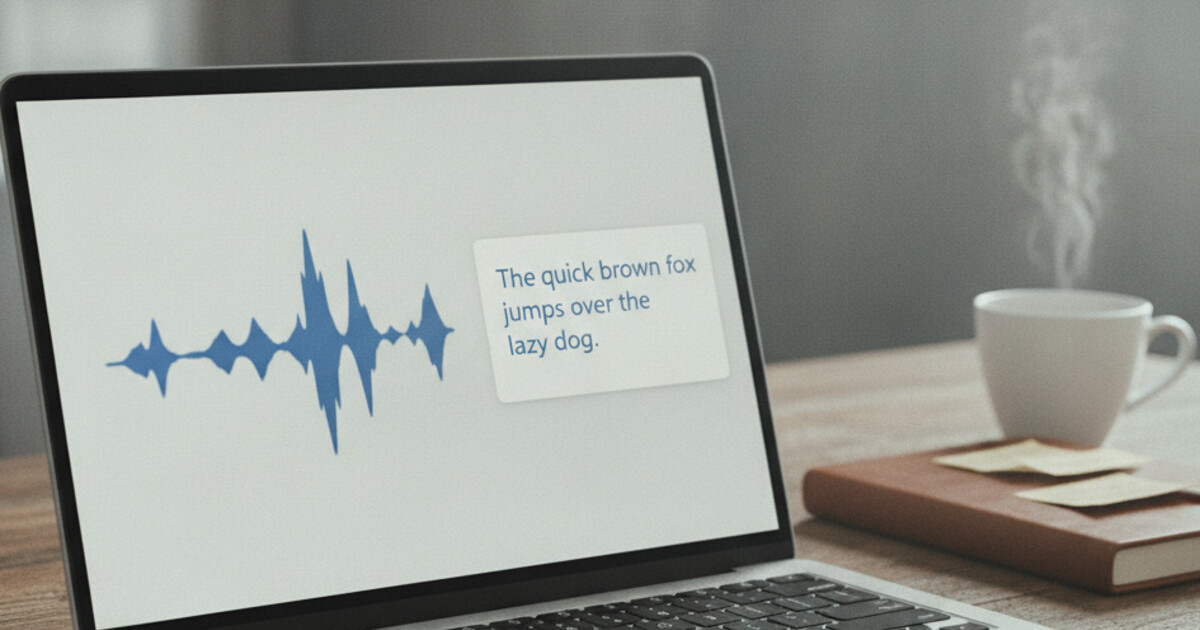
AI Transcript Generator: Best Free Tools in 2026
Converting spoken audio to text used to mean hiring a transcriptionist at $1-2 per minute or spending hours typing it yourself. A good AI transcript generator cuts that process down to a few minutes at a fraction of the cost.
Picking the right tool depends on what you need the transcript for. Students processing lectures have different requirements than journalists transcribing interviews or teams capturing meeting notes. This guide covers how transcript generators work, which free options are worth using, and how to get clean output from any of them.
An AI transcript generator converts audio or video files into text automatically using speech recognition. Leading tools achieve 85-95% accuracy on clear audio and process a 60-minute recording in under 10 minutes. The best free options in 2026 include NoteHive (study materials from audio), Otter.ai (meeting transcription), and YouTube's auto-captions (video content).
What Is an AI Transcript Generator?
A transcript generator listens to an audio or video file and converts the speech into written text using machine learning. Most modern tools run on transformer-based speech models, which is why they handle natural speech, different accents, and technical vocabulary better than older voice recognition software did.
The output is typically a text file, sometimes with timestamps every few lines. Some tools add speaker labels for multi-person recordings, though not all support this feature.
Transcript generators use AI speech recognition to convert audio and video into text automatically. Modern systems achieve 85-95% accuracy on clear speech, dropping to 70-80% with heavy background noise or strong accents. Processing speed is roughly 4-10x real-time: a 60-minute lecture transcribes in 6-15 minutes depending on the service and file quality. Most tools accept MP3, M4A, WAV, MP4, and MOV files. Free tiers typically cap uploads at a set number of minutes per month. Accuracy differences between leading tools are small when audio is clean; the real differentiator is what happens after the transcript. Some tools stop at plain text. Others add speaker labels, timestamps at every sentence, or export options in SRT, VTT, or DOCX format. For students, the most useful transcript generators don't just produce text: they organize it into notes, pull out key concepts, and generate flashcards from the same recording session.
The basic workflow is simple: upload a file, the tool processes it, and you download or copy the text. More advanced tools let you edit the transcript in a browser, search within it, and export in multiple formats.
How Free Transcript Generator Tools Compare
Four options cover most use cases. Here's how they stack up.
NoteHive is built for students. You upload a lecture audio or video file (or record directly in the browser), and it transcribes in 80+ languages. The free tier covers a set number of recordings. What separates it from basic transcribers is the output: you get organized notes with key concepts grouped by topic, auto-generated flashcard sets, and a practice quiz from the same recording, not just raw text.
Otter.ai targets teams and meetings. Its free plan includes 300 minutes per month with live transcription capability for Zoom calls. The transcript editor is clean: you can highlight sections, add comments, and search the full text. For students using it for lectures, speaker identification helps when a professor quotes other sources. There's no automated study materials pipeline on the free tier.
YouTube's auto-captions work well if your content is already on the platform. Accuracy on clear speech runs around 80-85%. You can download the auto-generated SRT file and clean it up in a text editor. This option only works for video already hosted on YouTube, which limits its usefulness for personal recordings.
OpenAI's Whisper is open-source and free to run locally if you're comfortable with a command line. Accuracy is comparable to paid services on clear audio. The barrier is setup time: it requires Python and benefits from a GPU for fast processing. Most students and professionals are better served by a browser-based tool.
For students, NoteHive or Otter.ai handles the core use case. For journalists or researchers, check out how to transcribe an interview for a method-by-method comparison.
How to Get Accurate Results From a Transcript Generator
Audio quality is the biggest variable. A clean recording at 128kbps or higher with minimal background noise will hit 90-95% accuracy on most tools. A phone mic recording in a noisy classroom might drop to 70%.
A few practices that consistently improve output:
- Record close to the source. A phone held 6-12 inches from the speaker outperforms a laptop mic across the room.
- Reduce background noise. Close doors, avoid rooms with HVAC hum, and mute participants who aren't speaking during a recording session.
- Upload in a high-quality format. WAV and FLAC give AI models more signal to work with than heavily compressed MP3 files.
- Split long files. Some free tools cap individual uploads at 30-60 minutes. Free audio editors like Audacity can split a recording in a few clicks.
After you get the transcript, skim it for proper nouns and technical terms. These are where accuracy slips most often: an AI model trained on general speech may not have seen your professor's specialized vocabulary. Catching those errors while the recording is fresh saves more time than editing a cold transcript later.
If you're working with video content specifically, how to transcribe a video to text walks through each method step by step.
How NoteHive Turns a Transcript Into Study Materials
Most transcript generators stop when the text file is ready. NoteHive keeps going.
After you upload an audio or video file (MP3, M4A, WAV, WEBM, FLAC, AAC, MP4, MOV, and more), or record a lecture directly in the browser, NoteHive transcribes the content and runs it through its AI to produce organized notes with key concepts grouped by topic. From the same session, it builds a flashcard set for active recall practice and an interactive quiz with progress tracking.
The notes-to-podcast feature converts your organized notes into an audio file, which is useful for review sessions during a commute or workout when reading isn't practical.
NoteHive supports 80+ languages, so international students who attend lectures in one language can work with their notes in another. The web app runs in any browser at notehive.app, with no install required.
For a step-by-step look at audio transcription methods, see how to transcribe audio to text.
Frequently Asked Questions
What's the most accurate free transcript generator?
For clear speech, NoteHive, Otter.ai, and tools built on OpenAI's Whisper all reach 85-95% accuracy. The differences between them on clean audio are small. The deciding factor is usually what you need the output for: raw text, speaker labels, or study materials. Background noise and audio quality affect accuracy more than the tool choice does.
Can a transcript generator handle multiple speakers?
Some can. Otter.ai includes speaker diarization on its free plan, labeling each turn as Speaker 1, Speaker 2, and so on. NoteHive doesn't offer speaker labels, so if you need clear attribution for an interview or panel discussion, Otter.ai or a specialized transcription service is the better fit for that job.
How long does it take to generate a transcript?
Most AI transcript generators process audio at 4-10x real-time speed. A 60-minute lecture typically finishes in 6-15 minutes. Processing time varies based on file size, server load, and whether you're on a free or paid tier. Files under 30 minutes usually complete in 2-5 minutes on most platforms.
Can I use a transcript generator for academic work?
Transcript generators capture what was said, so they're straightforward note-taking tools: the source is still the lecture or interview you recorded. NoteHive is university-compliant and doesn't answer questions or assist with homework, so the organized notes it produces are study aids, not academic shortcuts. Check your institution's recording policy before capturing lectures.
What file formats do transcript generators accept?
Most AI transcript generators accept MP3, M4A, WAV, MP4, and MOV. NoteHive also handles WEBM, FLAC, AAC, OGG, AVI, MKV, and M4V, and it accepts document files (PDF, DOCX, TXT) directly as well. If your recording is in an unusual format, a free converter like VLC or Handbrake can export it to MP3 before uploading.
If you're processing lectures and want organized notes, flashcards, and a practice quiz pulled from the same recording, try NoteHive free at notehive.app/onboarding. Upload an audio or video file and you'll have study materials ready in minutes.
Ready to transform your study sessions?
Start using NoteHive AI in your browser — turn your lectures into organized notes, flashcards, and quizzes. No download required.