
How to Transcribe a Video to Text: 4 Methods (2026)
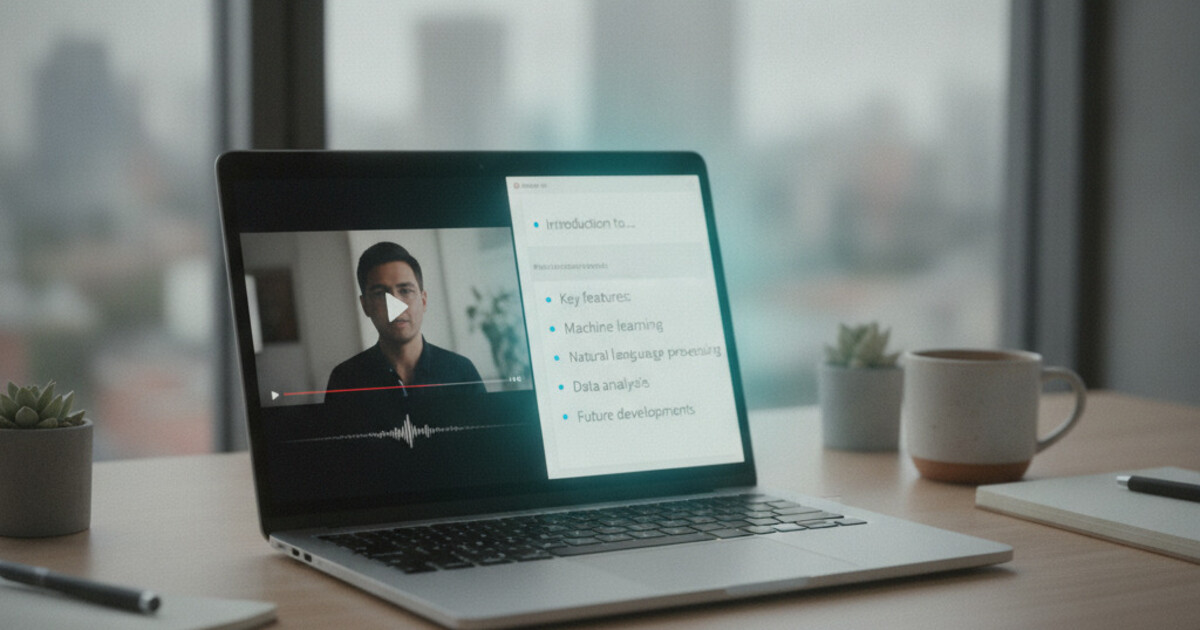
How to Transcribe a Video to Text: 4 Methods (2026)
Video content piles up fast. A recorded Zoom lecture, a client presentation, a documentary clip for a research paper, an interview you need to quote. If you need to transcribe a video to text, you're picking between four approaches, and the right one depends on how clean your audio is, how long the video runs, and what you plan to do with the words afterward.
This guide covers all four methods honestly: what each costs in time and money, where each one breaks down, and which situations call for which tool. The same approaches work whether your source is an MP4, MOV, MKV, AVI, or a downloaded Zoom recording.
To transcribe a video to text, upload the file to an AI transcription tool. It extracts the audio and converts it to a readable transcript automatically, usually in the length of the video or faster. NoteHive AI does this free in any browser and also generates organized notes and a summary. For verbatim legal records, use a human service.
What It Means to Transcribe a Video
Transcribing a video means extracting the spoken audio and converting it into readable, editable text. The result is a transcript: a written record of what was said, searchable and usable for quoting, captioning, study, or editing.
The technical steps are simple. You extract the audio from the video file, then convert that audio to text. The methods differ in whether a machine or a human does the converting, and how much cleanup you'll need afterward. Audio quality matters more than video format. A poorly recorded MP4 produces a worse transcript than a well-recorded MOV, regardless of the tool.
Video content is growing at a scale that makes manual transcription impractical for most use cases. YouTube users upload 500 hours of video every minute. Researchers working on qualitative studies routinely manage 20 or more interview recordings at once. AI transcription tools process a 60-minute video in 5 to 10 minutes at no cost, compared with the 4 to 6 hours a professional typist budgets per hour of audio. Human transcription services charge $1.25 to $2 per audio minute, putting a one-hour video at $75 to $120 before editing. On clean audio with one clear speaker, AI tools reach 90 to 95% word accuracy. Background noise, overlapping speakers, and heavy technical jargon push that figure toward 70 to 80%. The practical result: AI handles the bulk of the conversion; a quick review pass catches the handful of words it got wrong.
Accessibility law adds another driver. The Web Content Accessibility Guidelines (WCAG 2.1 Level AA) require captions for pre-recorded video content on websites, meaning any organization that publishes video online is responsible for making it readable.
Method 1: AI Apps That Transcribe a Video
This is where most people land, because it takes the typing out of the process entirely.
You upload a video file or record audio directly in the browser. The tool extracts the audio and converts it to text automatically. A 30-minute video usually processes in under 5 minutes. A one-hour video in under 10. You get back an editable transcript, review it quickly for the handful of words that got garbled, and you're done.
The category splits into two kinds of tools. Some stop at the raw transcript: they hand you accurate text and that's the product. Others go further and turn the transcript into structured notes, a summary, or flashcards, which matters when you need to do something with the content rather than just archive it.
NoteHive AI
NoteHive AI sits in that second group. Upload a video file (MP4, MOV, MKV, AVI, and M4V all work), and it extracts the audio and processes it into three things: a clean transcript, organized notes with the key points sorted out, and a short summary of the main content. For a recorded lecture, that means you end up with the full text plus a condensed version of what actually mattered, without scrolling through thousands of words of transcript to find the three things you care about.
A few things make it practical beyond a plain transcriber. It supports 80+ languages, so a recording in Spanish, French, or Mandarin produces a usable transcript without any format conversion. It also turns notes into an audio podcast version for hands-free review on a commute (that notes-to-podcast workflow does the heavy lifting). It's free to start in any browser with nothing to install.
Honest limits worth knowing: NoteHive doesn't label speakers. If you need to know exactly who said which sentence across five panelists, you'll want a dedicated diarization tool. It also can't pull audio from a URL you paste in, so you download the video file first and then upload it. For the most common recording situations (a lecture, a webinar, a team call, an interview), those limits don't get in the way.
Best for: Recordings you need to do something with, not just store. Lectures, meetings, interviews, and webinars you'll act on. Cost: Free to start; premium for unlimited use.
Method 2: Platform Auto-Captions
YouTube, Zoom, Teams, and Google Meet all generate captions automatically. For videos already living on those platforms, this is the fastest option with zero uploads or extra accounts.
On YouTube, open any video, click the three dots below the player, and download the transcript. Zoom cloud recordings with transcription enabled generate a VTT caption file alongside the video. Teams and Google Meet have similar built-in options under their recording settings.
The catch is accuracy. Platform auto-captions are built for display during playback, not for producing a clean document. YouTube accuracy varies significantly: a single speaker in a quiet room can hit 90%, but a panel discussion in mediocre audio can fall below 65%. You also can't use this method for video you don't host on the platform.
The output gives you raw caption blocks with timestamps, not organized content. Cleaning it into a readable document and extracting the useful parts is a second job you'll still have to do yourself.
Best for: Videos already on YouTube, Zoom, or Teams when you need the rough words quickly. Cost: Free. Where it breaks: Noisy audio, non-platform video files, and any situation where you need organized output rather than raw caption text.
Method 3: Type It Out Manually
Play the video, pause every few seconds, type what you hear. This still works in two narrow situations: the clip is under three minutes, or the content is too sensitive to send to any cloud server.
For anything else, the time math is punishing. Professional transcriptionists budget four hours of typing per hour of audio using foot pedals and playback software. For most people, a 30-minute video eats an entire afternoon. Manual typing also gives you raw unstructured text. You get words, and then you still have to read, organize, and summarize them yourself.
A middle-ground option exists: play the video out loud near a microphone and let a live dictation tool (Google Docs Voice Typing, iPhone Notes) capture it as text. This skips some typing but produces the same unstructured output with similar accuracy problems as auto-captions.
Best for: Short clips under three minutes, offline-only requirements, sensitive content you can't send to a cloud service. Cost: Free, but expensive in hours.
Method 4: Human Transcription Services
When accuracy is mandatory and errors have real consequences, a human still outperforms any software.
Services like Rev and GoTranscript assign your file to a professional typist who returns near-verbatim text, usually with speaker labels and timestamps. Turnaround runs 12 to 48 hours for standard delivery. Cost lands at $1.25 to $2 per audio minute, so a one-hour video costs between $75 and $120.
That price makes sense when accuracy is non-negotiable: legal depositions, medical dictation, research you'll cite in published work, or content with compliance requirements. For everyday recordings (team calls, lectures, interviews), it's more precision than the job needs.
Some services offer a hybrid option: an AI first draft cleaned by a human editor. This costs less than full human transcription and handles the errors AI makes with names, accents, and domain jargon. Worth considering for content that needs 98%+ accuracy without full legal verbatim standards.
Best for: Legal depositions, medical records, compliance documentation, and published research where verbatim accuracy is required. Cost: $1.25 to $2 per audio minute (~$75 to $120 per hour of video).
Which Video Transcription Method Should You Use?
Here's the honest breakdown by situation:
| Your situation | Best method |
|---|---|
| Lecture, webinar, or meeting you'll act on | AI tool (e.g., NoteHive) |
| Video already on YouTube, Zoom, or Teams | Platform auto-captions |
| Clip under 3 minutes | Type it manually |
| Content too sensitive for any cloud service | Type it manually |
| Legal deposition or medical record | Human transcription service |
| Foreign-language video | AI tool with multilingual support |
| 10+ videos, need structured output | AI tool with notes and summary |
For most working situations, an AI tool covers the need. If you're transcribing video for notes, research, content repurposing, or study, it processes the file faster than you could find the rewind button, and the structured output saves you the second pass of reading and organizing raw text.
For more on transcribing audio-only recordings and a deeper comparison of tools, see the guide to transcribing audio to text. If your source is a recorded interview, the interview transcription guide covers format expectations and accuracy trade-offs by recording type.
Frequently Asked Questions
What is the easiest way to transcribe a video?
Upload the video file to an AI transcription tool. You upload the MP4 or other video format directly, and the tool extracts the audio and converts it to text automatically. NoteHive AI does this free in any browser, returning a transcript plus organized notes and a summary. Typing it yourself takes four to six hours per hour of video.
Can I transcribe a video for free?
Yes. NoteHive AI is free to start: upload a video file (MP4, MOV, MKV, and more) or record audio live in the browser, and it returns a transcript, organized notes, and a summary with no credit card required. YouTube's automatic captions are free for videos on their platform, but accuracy varies and you can't use them for video you don't own.
How accurate is AI video transcription?
On clean audio with one clear speaker, AI transcription reaches 90 to 95% accuracy. Accuracy drops with background noise, overlapping speakers, or heavy technical jargon. Budget a few minutes to review the output and correct names and domain-specific terms. Human services reach near-verbatim accuracy but cost $1.25 to $2 per audio minute.
Can NoteHive transcribe a video in another language?
Yes. NoteHive supports 80+ languages for both transcription and note generation. Upload a video in Spanish, French, Mandarin, or most major languages and it returns the transcript in that language, plus organized notes. Useful for international coursework, multilingual interviews, or foreign-language research content.
What video formats work with AI transcription tools?
Most AI transcription tools accept the common formats: MP4, MOV, MKV, AVI, and M4V. NoteHive accepts these formats and extracts the audio automatically, so you don't need to convert the file to MP3 first. Very large files may need to be uploaded rather than processed from a direct link.
Upload a video and get a transcript, organized notes, and a summary in under 5 minutes. Start for free at notehive.app. Works in any browser, no install, no credit card.
Ready to transform your study sessions?
Start using NoteHive AI in your browser — turn your lectures into organized notes, flashcards, and quizzes. No download required.